 Screencast
How to install and launch Screencast
Follow the simple instructions — and in a minute you will be recording your screen in the browser.
Step-by-step instructions
-
1
Install Chrome and open the Chrome Web Store
Install Google Chrome if you do not have it yet. Open the Chrome Web Store and find the Screencast extension.
-
-
2
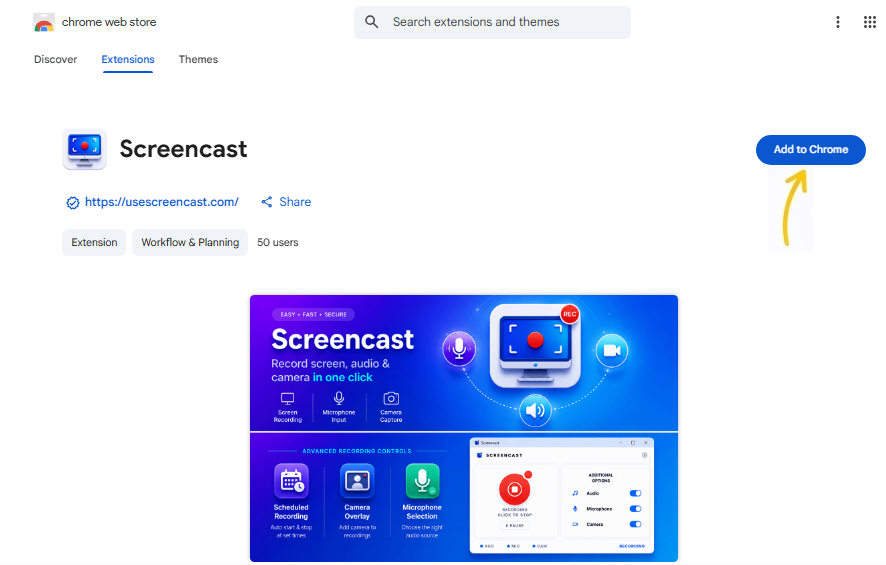
Click “Add to Chrome”
Click the “Add to Chrome” button and confirm the installation in the window that appears.
-
-
3
Pin the extension to the toolbar
Click the extensions icon (🧩) in the top right corner of Chrome and pin Screencast so it is always at hand.
-
4
Launch and prepare to record
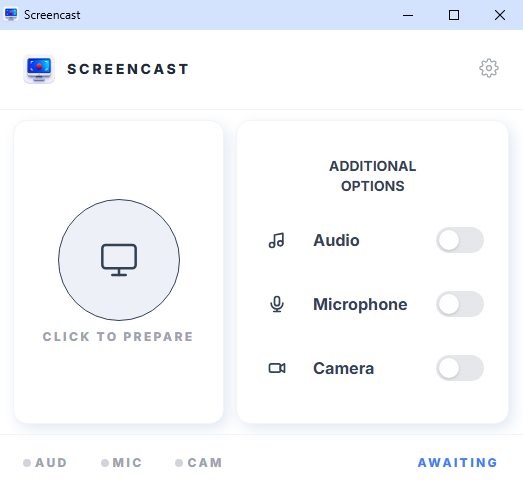
Click the extension icon on the toolbar to launch Screencast, then click “Prepare to record”.
-
-
5
Record and save the video
Start recording. When you finish, click “Stop” and choose where to save the video on your computer.