 Screencast
Record your screen right in the browser
Screencast is a Google Chrome extension for quick and easy screen recording. No extra software — just install and start recording!
How to Start Install extensionHow it works
Three simple steps: launch the extension and choose the options you need, get ready, then start recording.
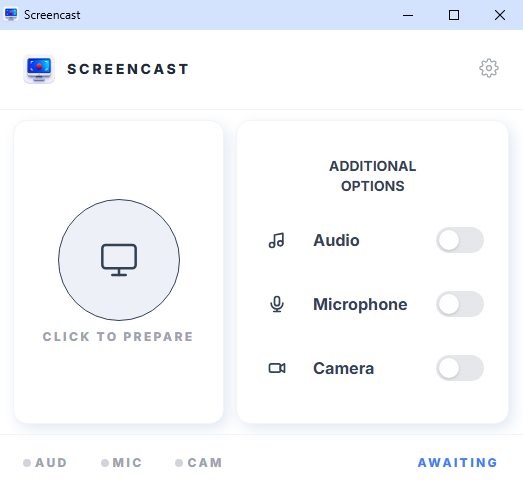
Step 1 — Waiting for your choice
The extension waits for your choice. Pick the options you need before recording: system sound, microphone and camera. Click the big round button to prepare the screen. Choose the source — the whole screen, a browser tab or a single window.
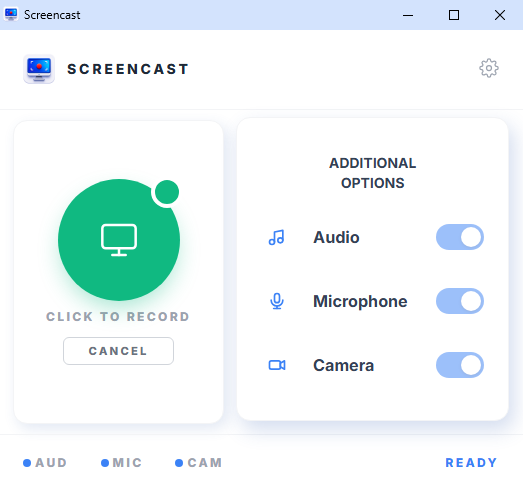
Step 2 — Ready to record
The extension is ready to start. After you press the big round green button, recording begins. If scheduled recording is enabled, it will start automatically at the set time. To cancel the start, press the cancel button.
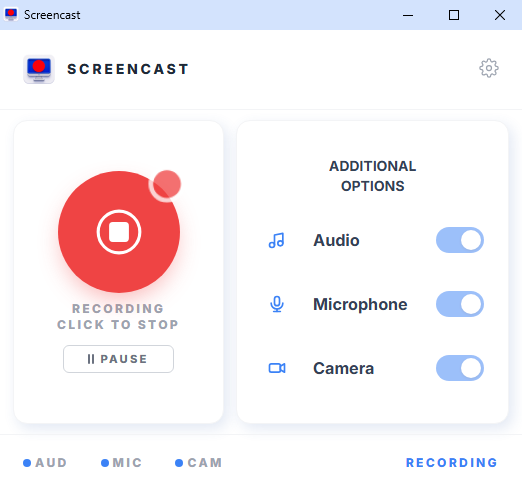
Step 3 — Recording in progress
Recording has started. Press pause to pause and resume to continue. To stop completely and save the video, press the big round red button, then choose where to save the file.
Why Screencast?
Quick start
Install the extension and start recording right away — no sign-up and no setup.
Free
The basic features are completely free. Screen recording is available to everyone.
Secure
Your data is not sent to any server. Everything is stored locally on your computer.
Video download
After recording, save the video straight to your device.